
Connect your Shopify store to Revone and track all your orders and revenue in one place. Get a complete overview of your store performance without switching between dashboards.
Connect your Shopify store and track all your orders and revenue in one place.
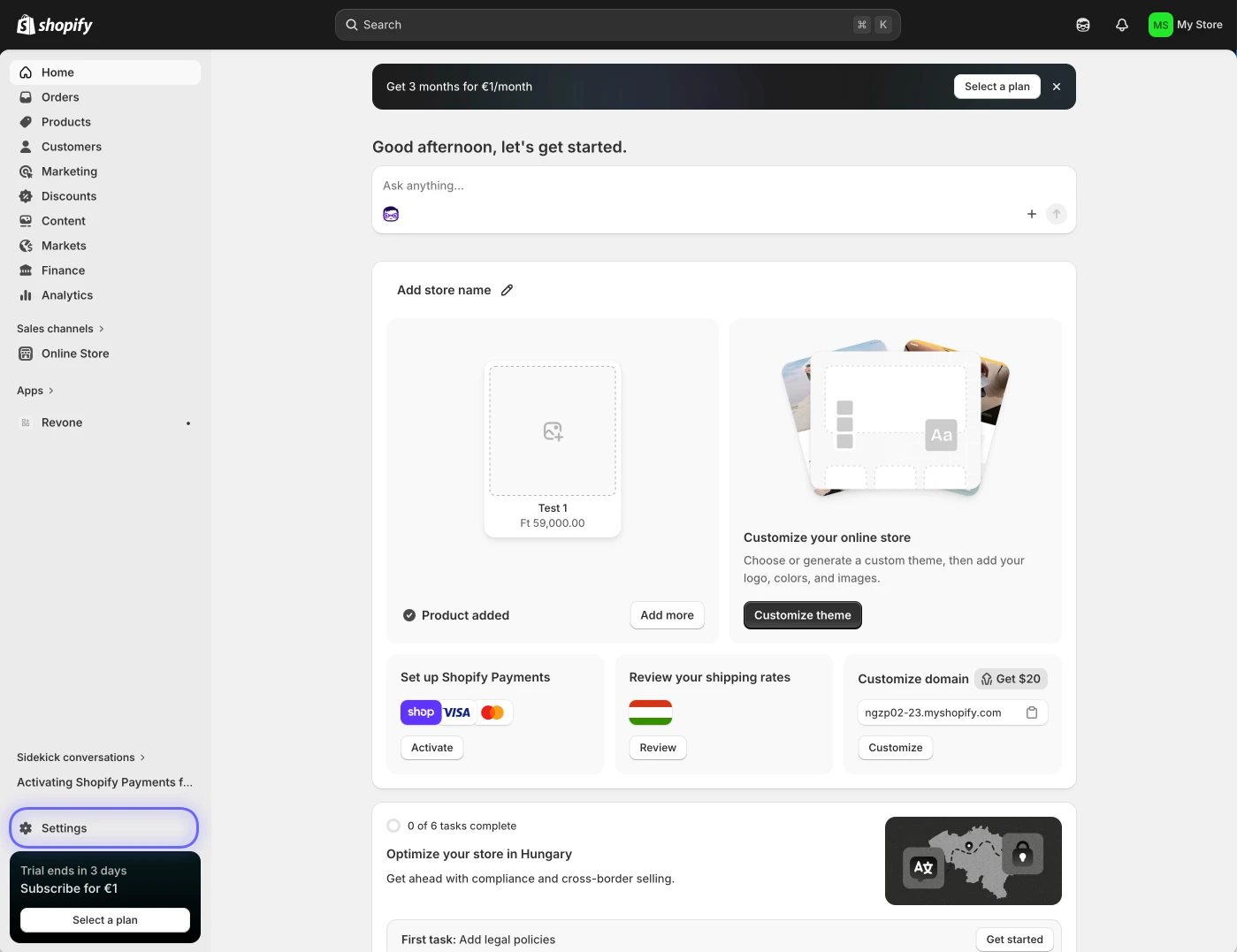
Step 1 — Copy your store domain
Go to your Shopify dashboard
In the left sidebar, scroll down and open Settings
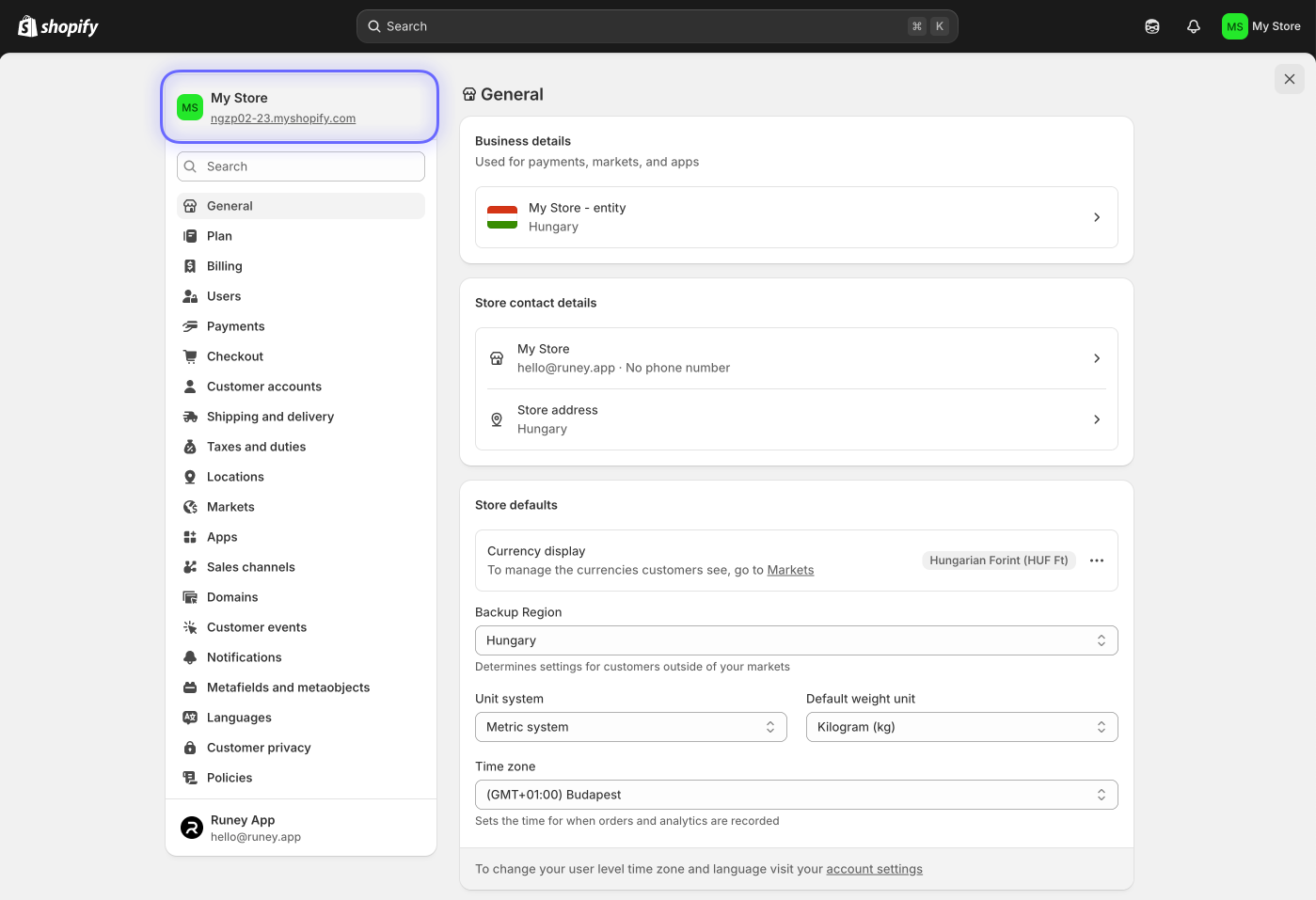
At the top, find your store domain:
Copy this and paste it into the Shop domain field in Revone
Step 2 — Create a custom app
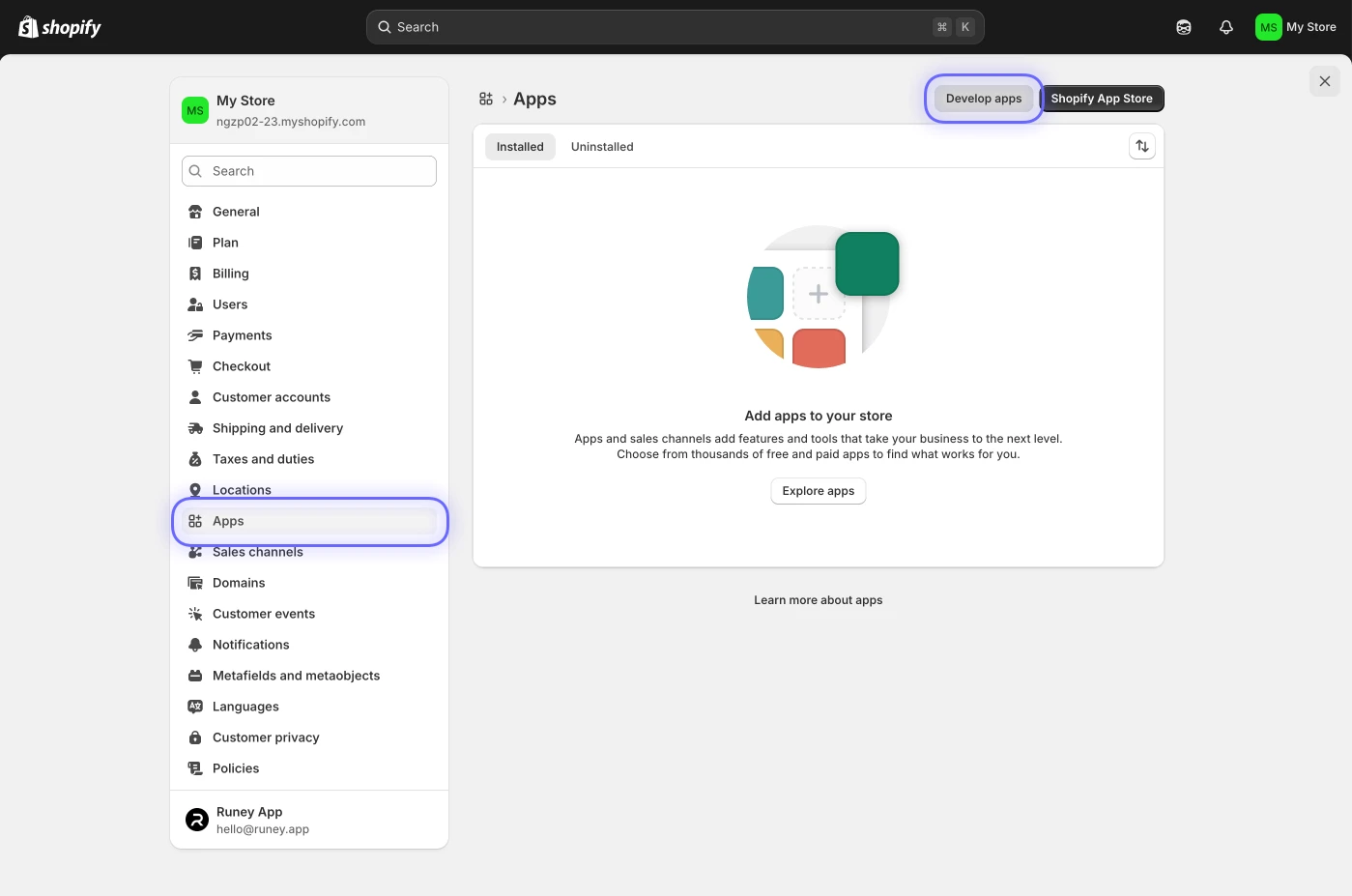
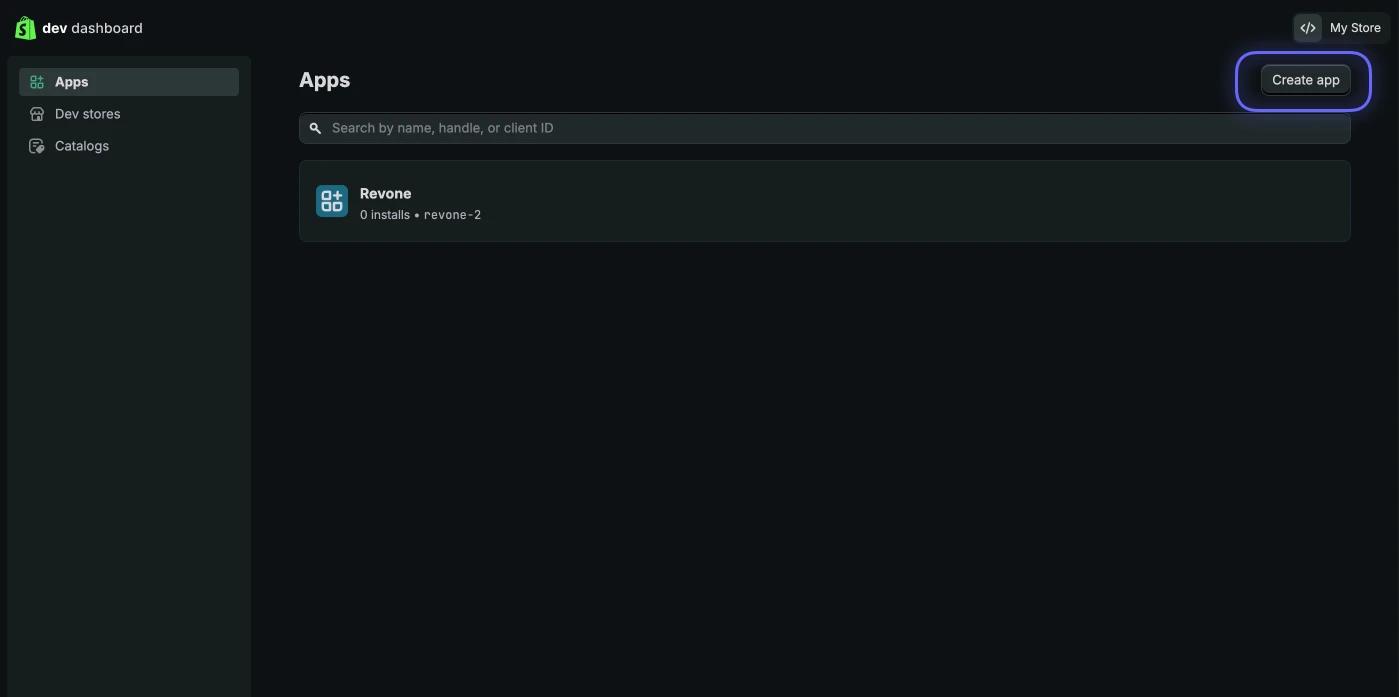
Go to Apps in the left sidebar
Click Develop apps
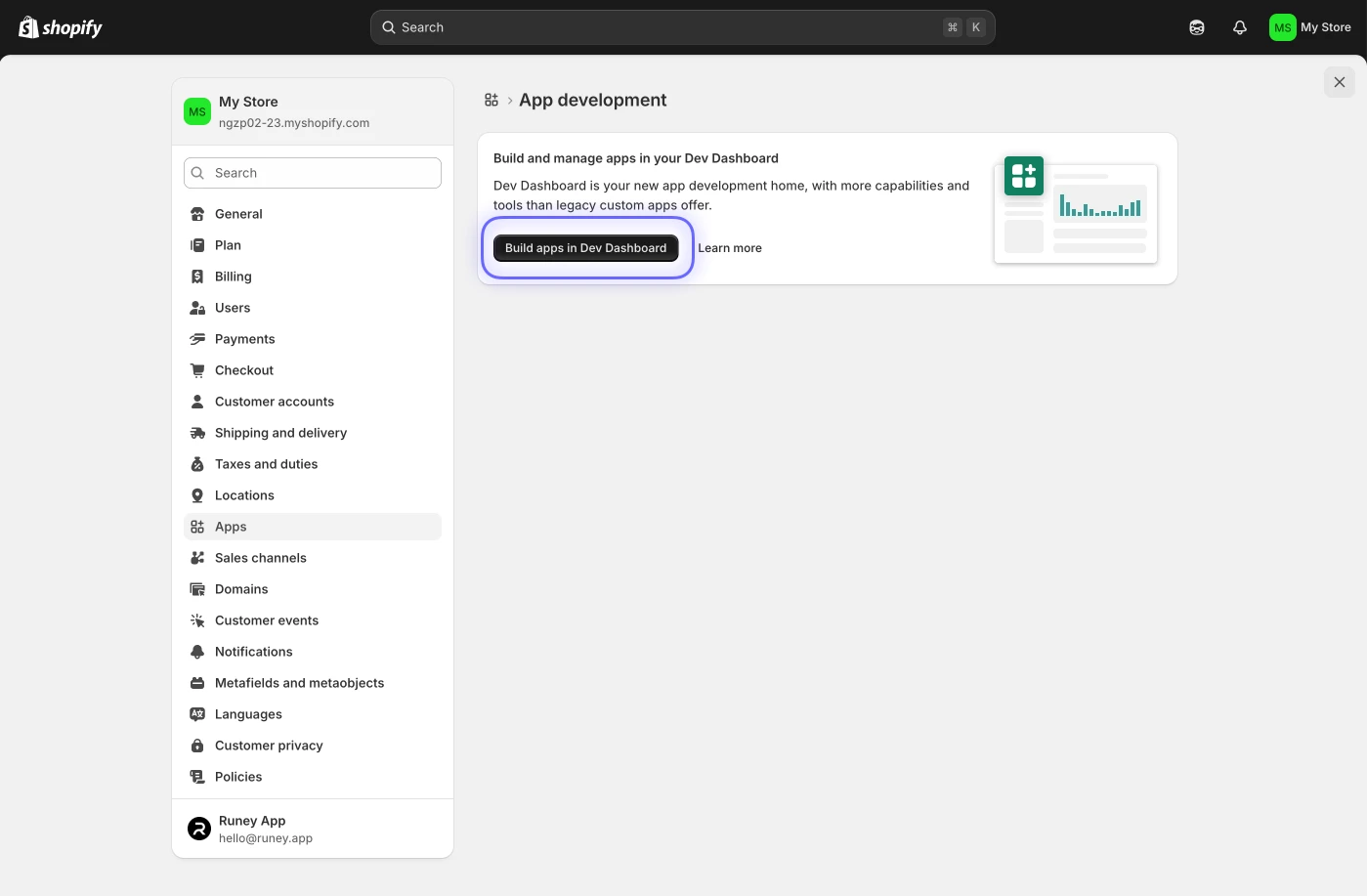
Click Build apps in your dev dashboard
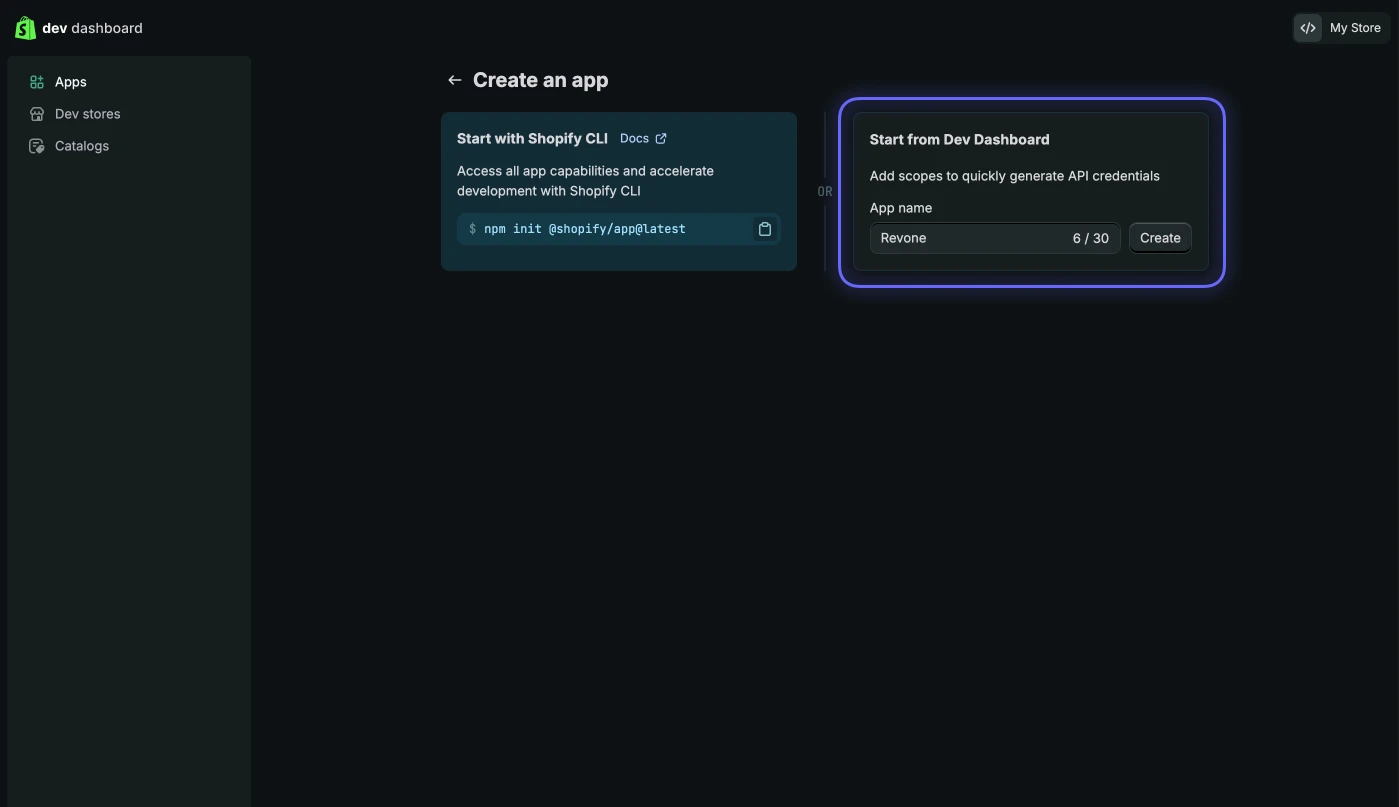
Click Create app
Enter a name (e.g. Revone)
Click Create
Step 3 — Configure API access
Open your app
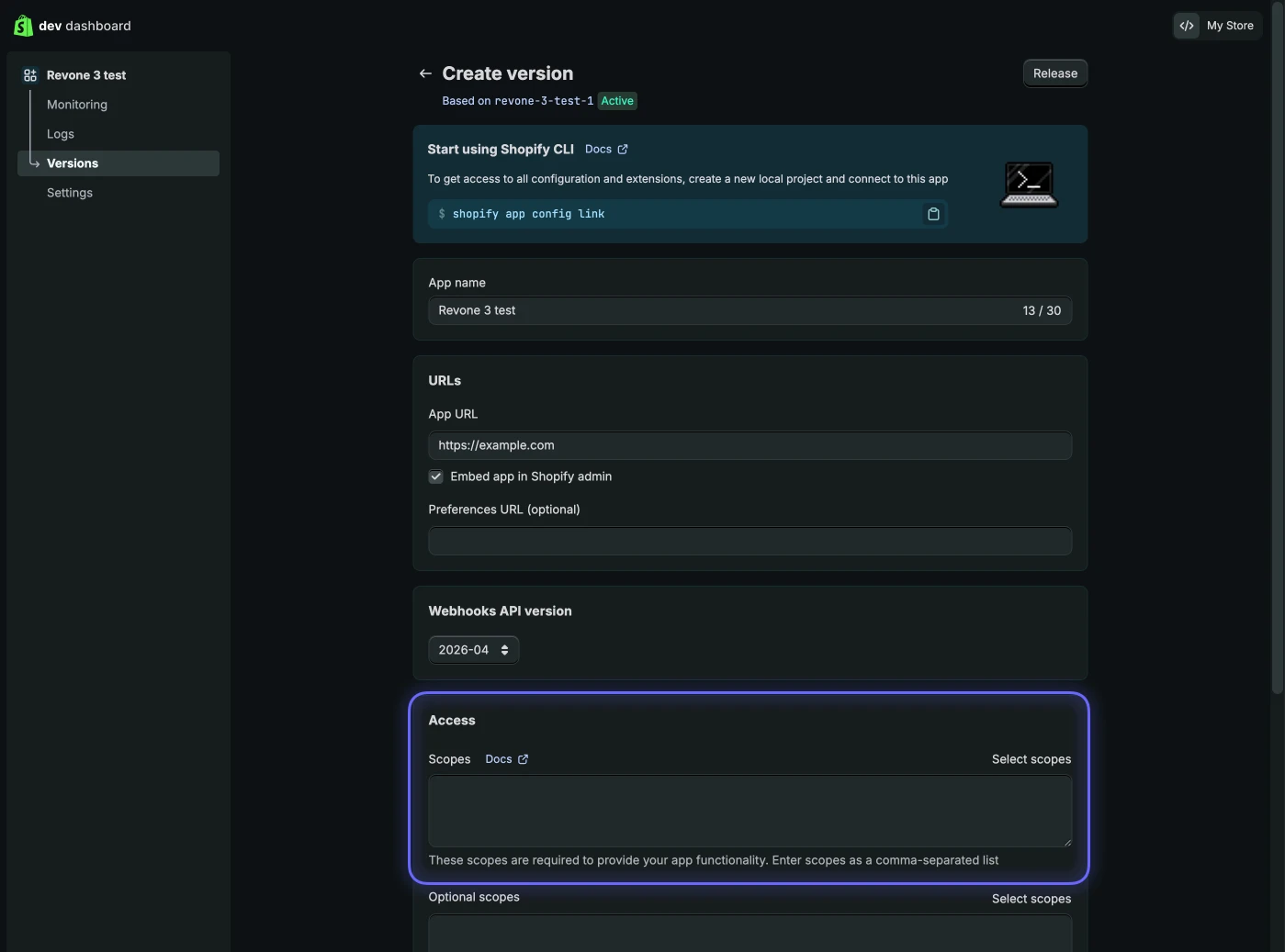
Go to Configuration / API access
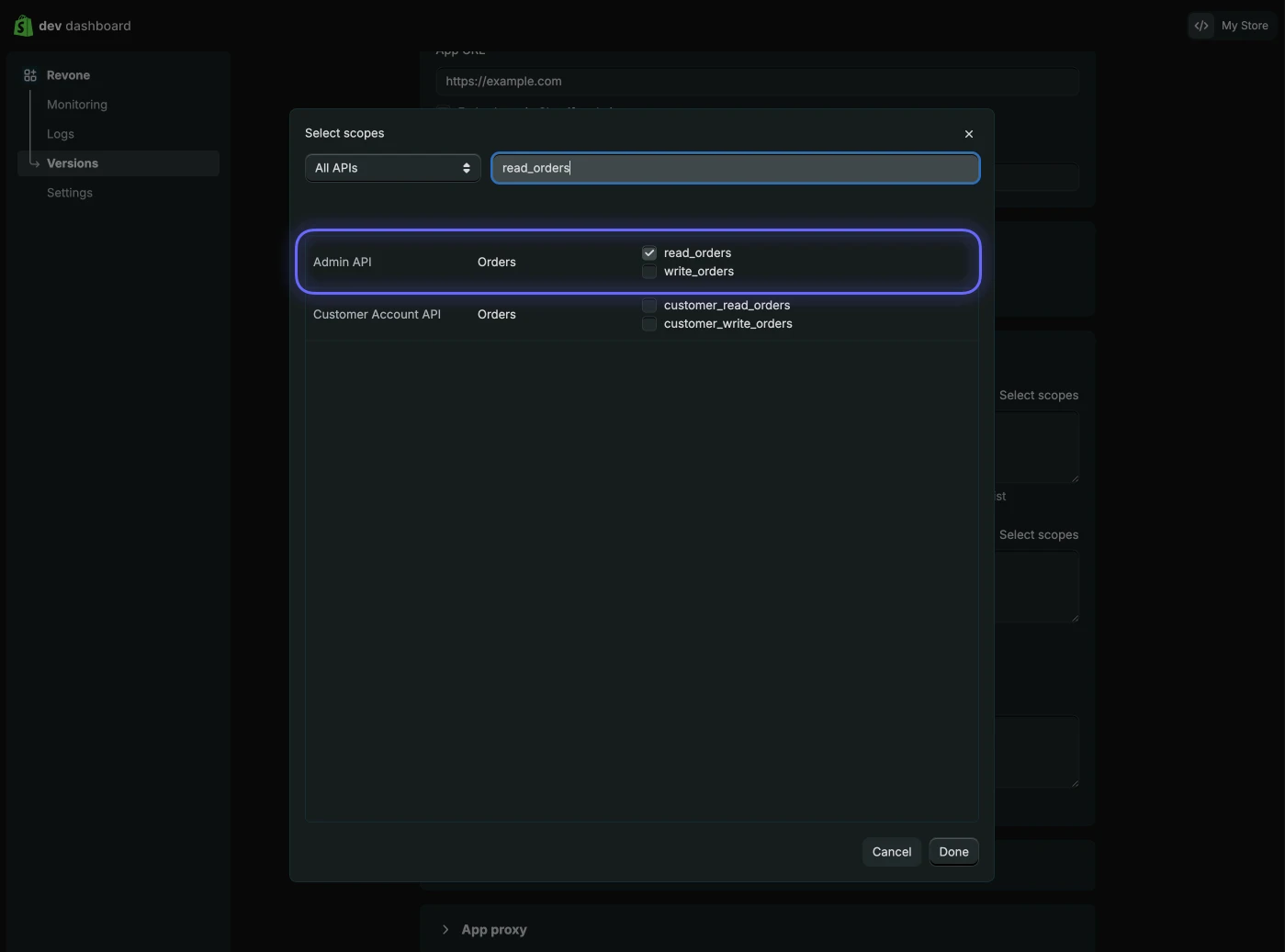
In the Admin API access scopes section, click Configure
Select:
read_orders
Click Save / Done
Step 4 — Generate credentials
Click Create version / Install / Release (depending on UI)
Confirm (no extra setup needed)
Step 5 — Copy API keys
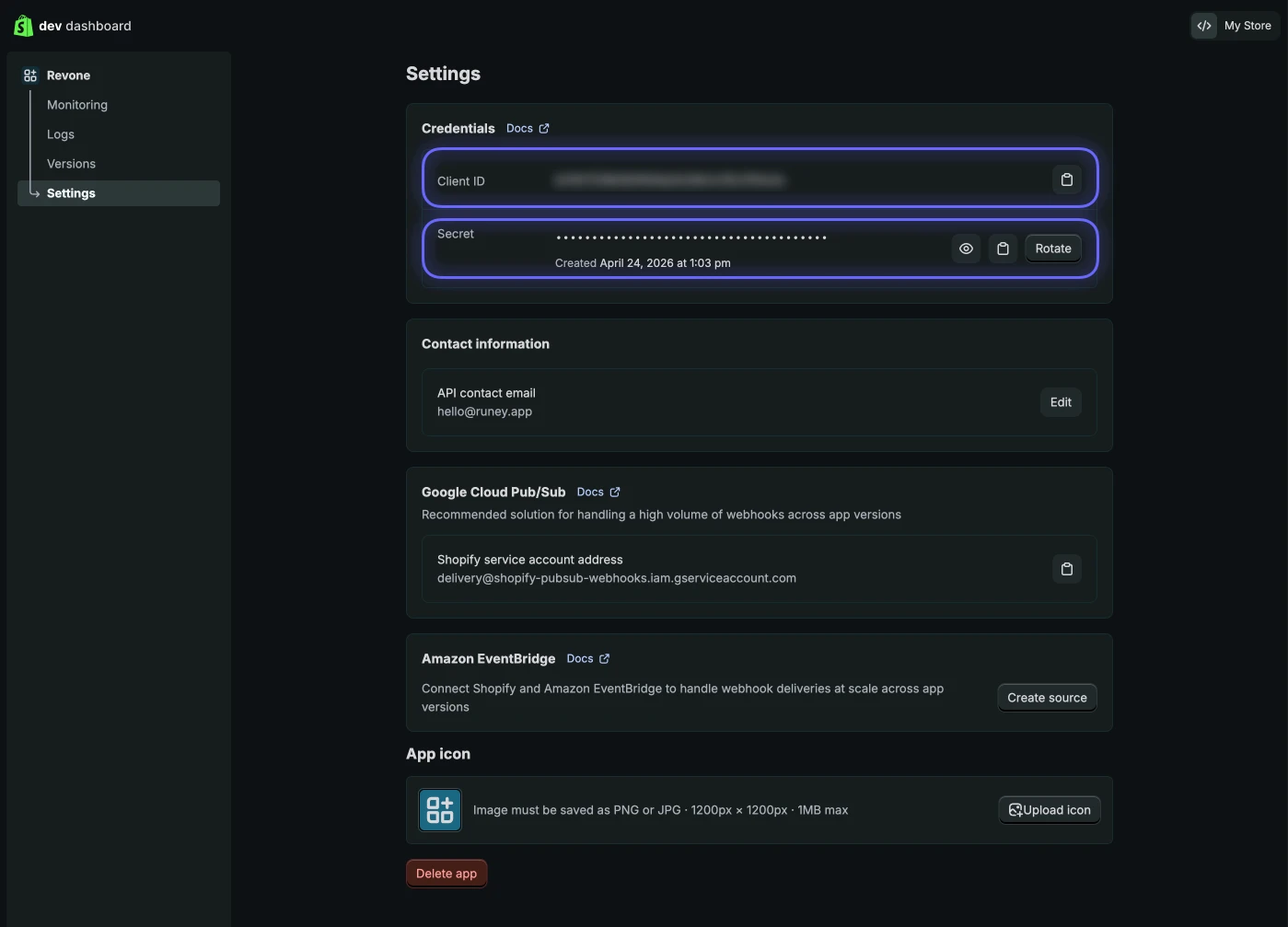
Go to your app Settings / API credentials
Copy:
Client ID
Client Secret
Paste both into Revone
Step 6 — Install the app
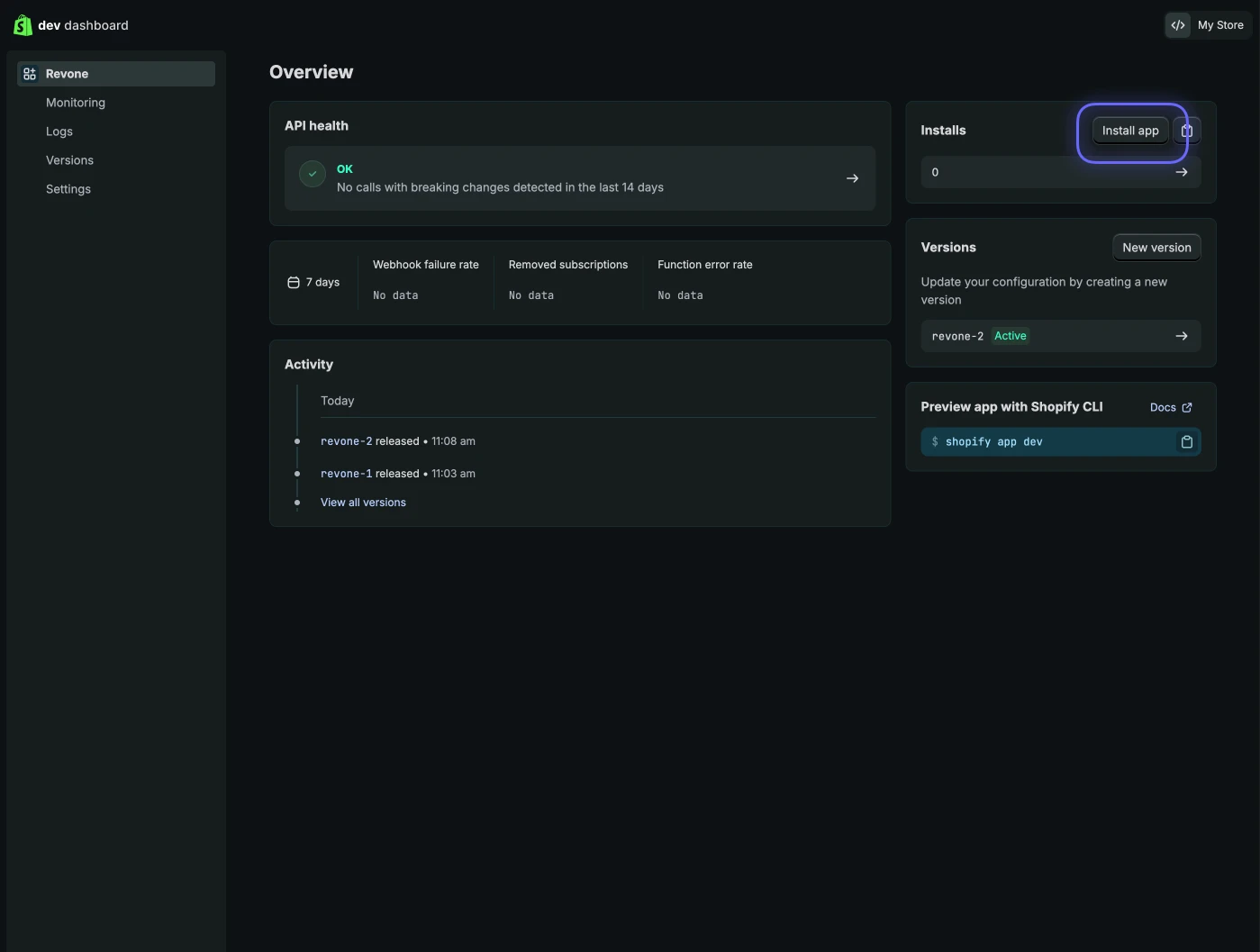
Go back to your app
Click Install app
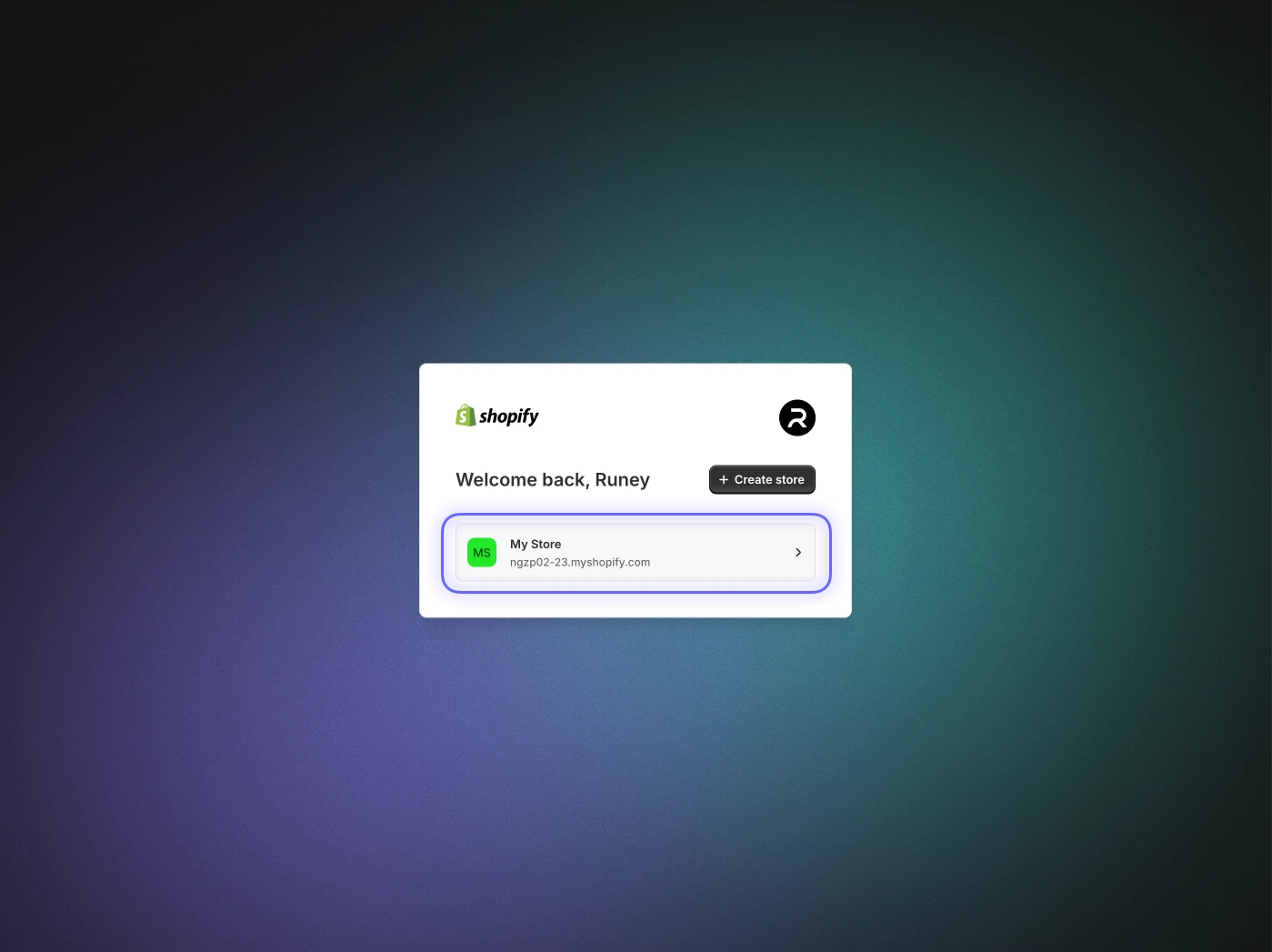
Select your store
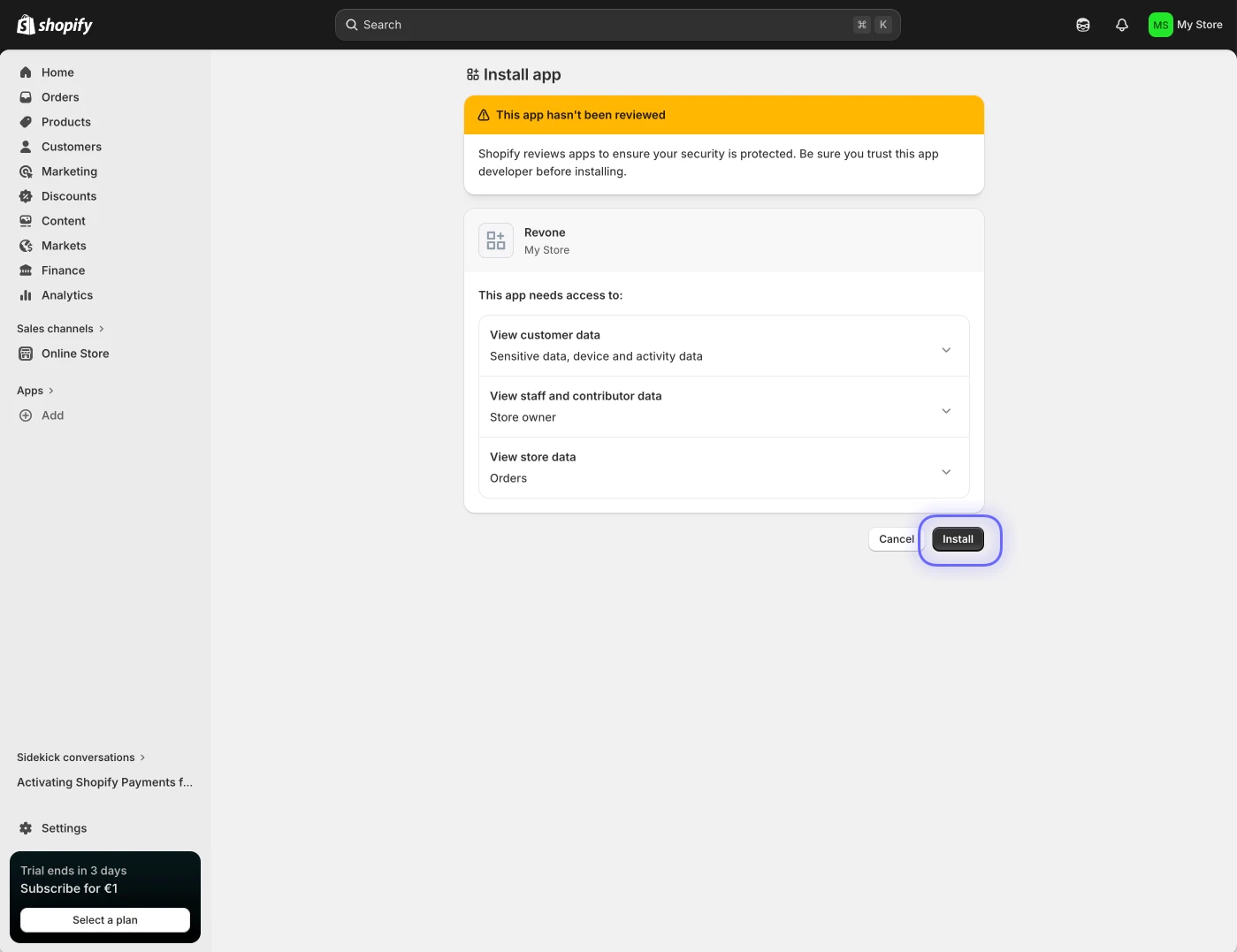
Confirm installation
You should now see the app listed as installed
Step 7 — Connect in Revone
Open Revone
Add a new Shopify connection
Paste:
Shop domain
Client ID
Client Secret
Click Connect
Security note
Your credentials are stored securely in macOS Keychain and never leave your device. Revone only uses them to read your store orders and revenue.
Done 🎉
Your Shopify data will start syncing automatically.