
Connect your Gumroad account to Revone and instantly track all your sales, products, and subscribers in one place. Get a clear overview of your revenue, monitor performance, and stay on top of every transaction without switching between dashboards.
To connect your Gumroad account, you’ll need to generate an access token. This allows Revone to securely read your products, sales, and subscribers.
Step 1 — Open your Gumroad settings
Go to Gumroad
Click your profile (top right)
Open Settings
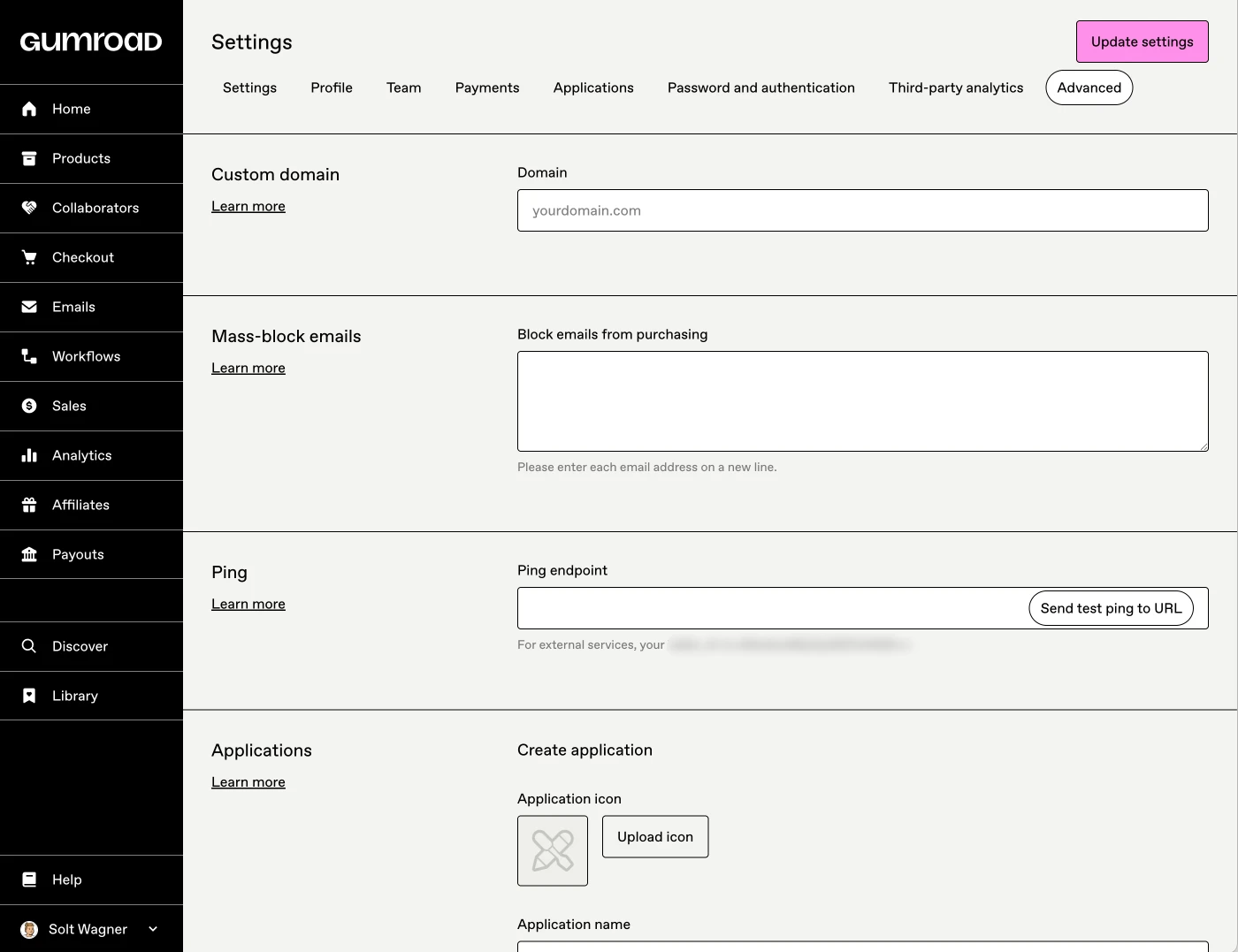
Step 2 — Go to Advanced settings
In the sidebar, click Advanced
Scroll to the Applications section
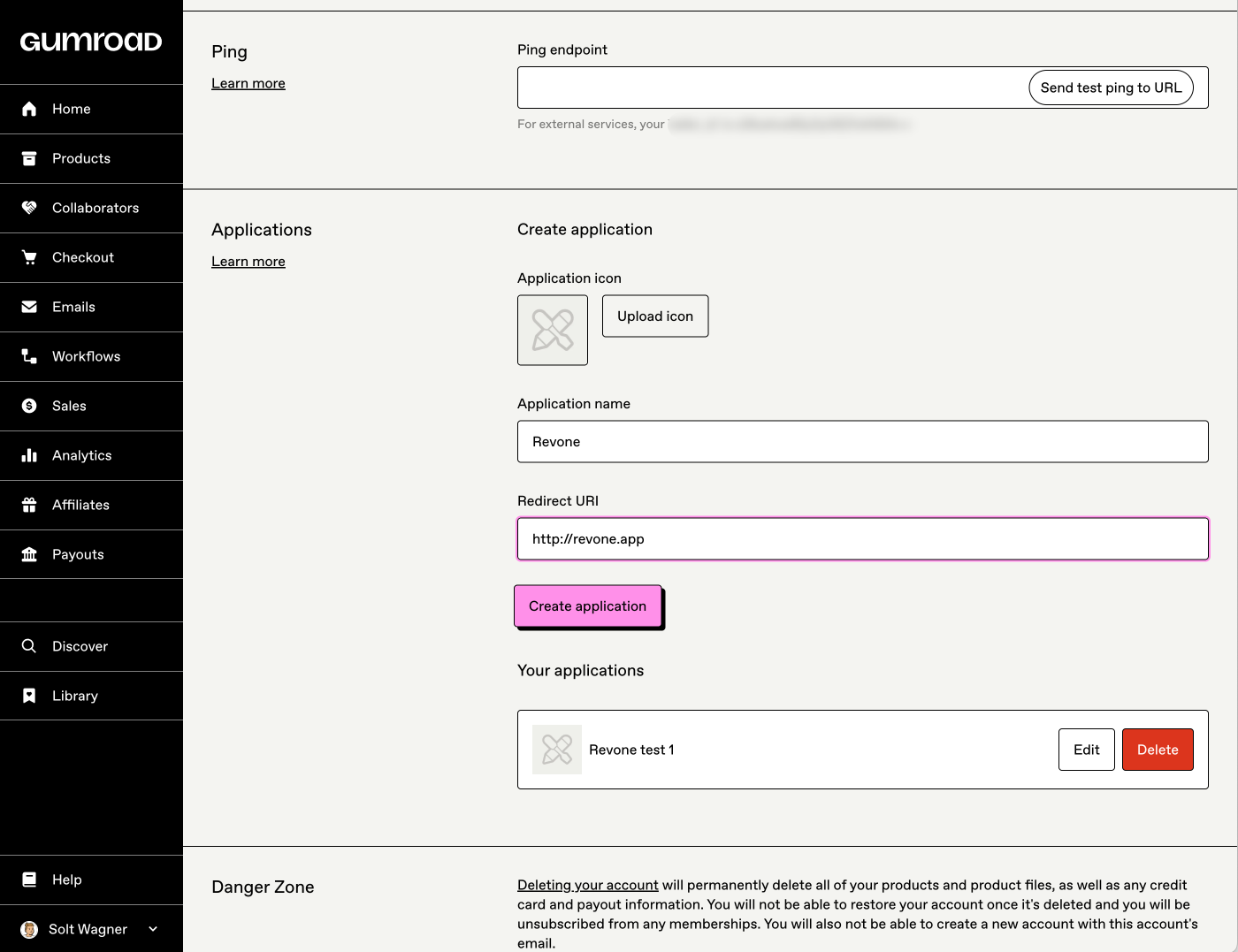
Step 3 — Create a new application
Fill in the details:
Application name: Revone (or anything you prefer)
Redirect URI:
https://revone.app
Click Create application
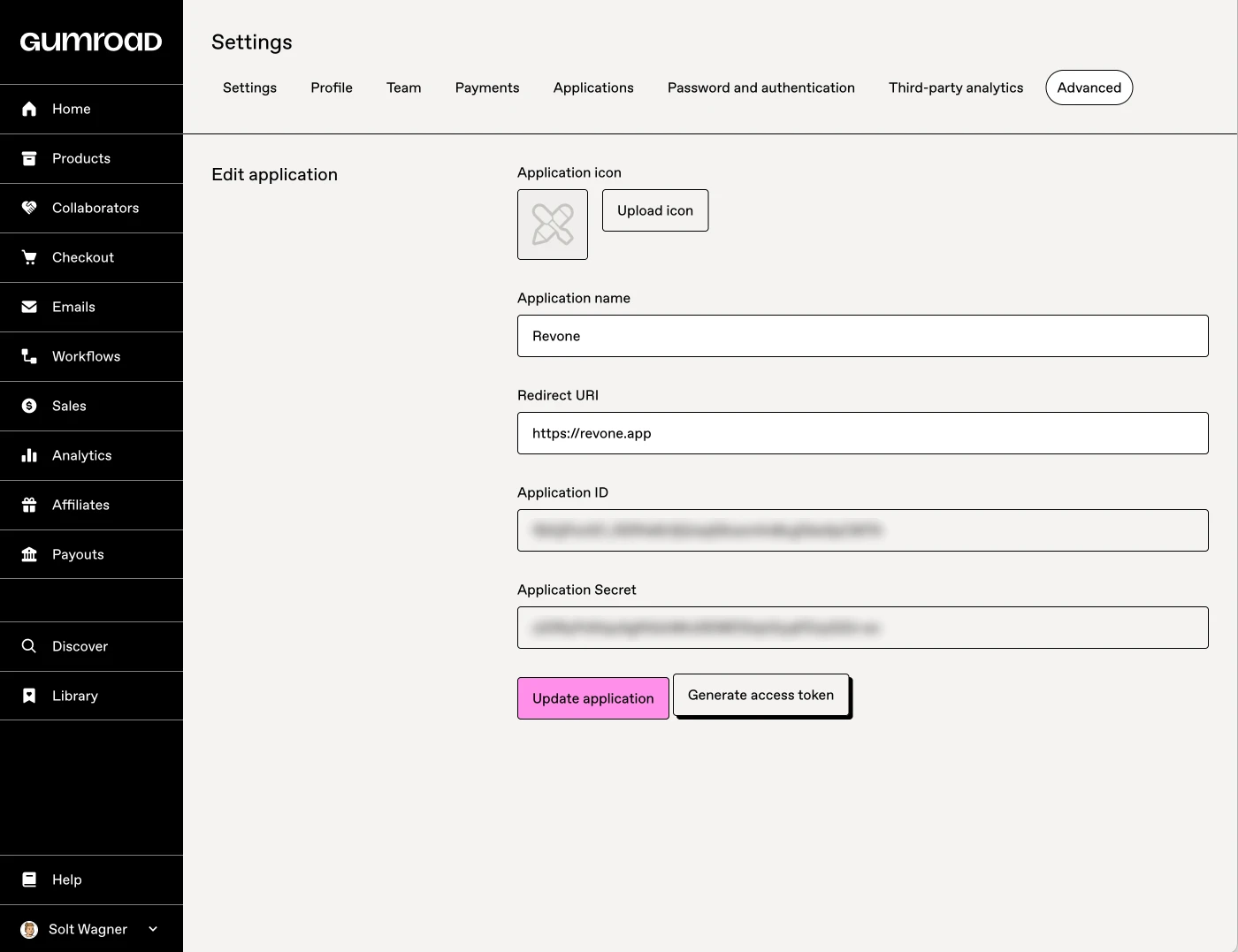
Step 4 — Generate an access token
Open the application you just created
Click Generate access token
Copy the generated token
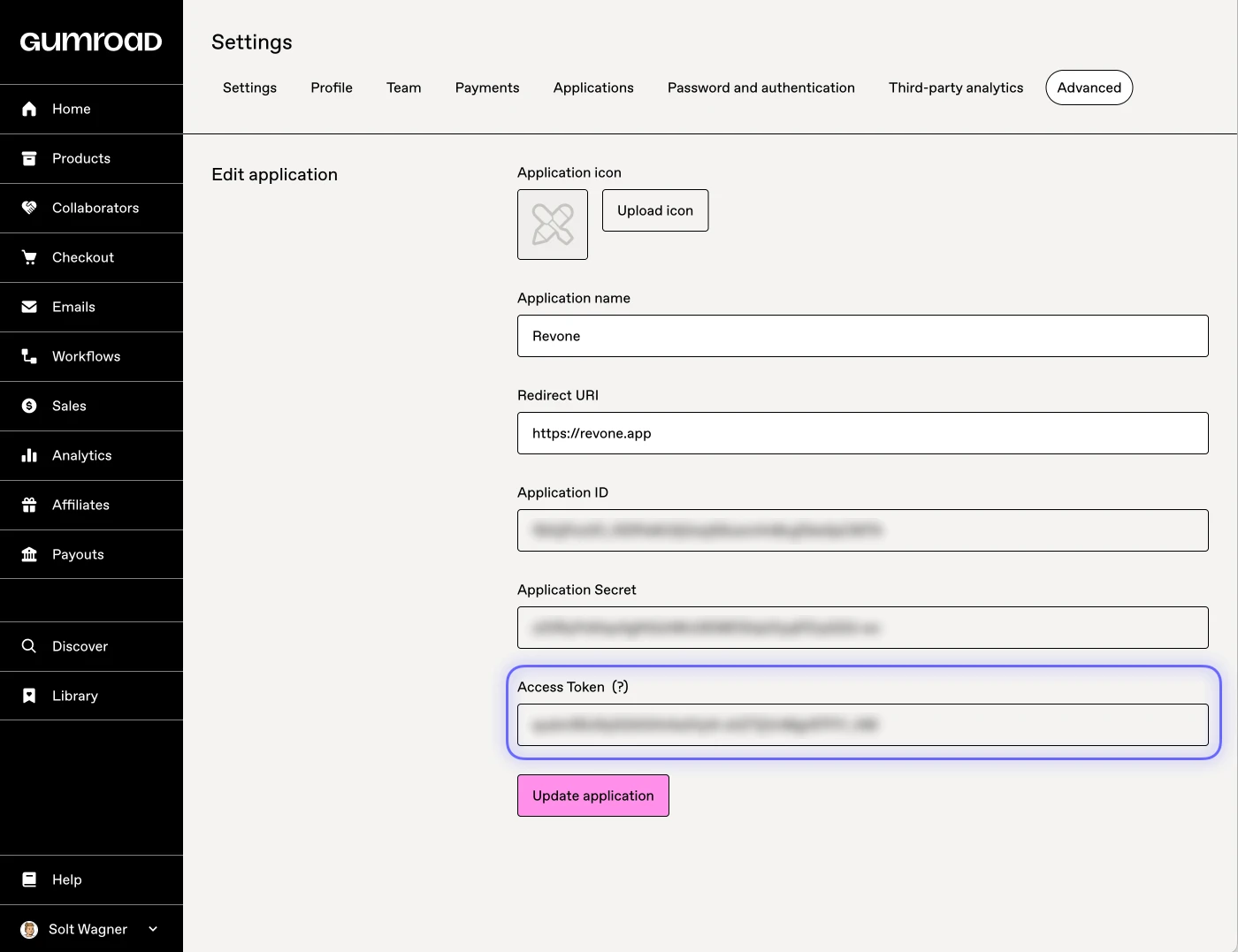
Step 5 — Paste into Revone
Open Revone
Add a new Gumroad connection
Paste your access token
Click connect
Security note
Your access token is stored securely in your macOS Keychain
Revone only uses it to read your data (products, sales, subscribers)
Your data never leaves your device
Tips
You can revoke your token anytime from Gumroad settings
If something doesn’t work, try generating a new token
Done 🎉
Your Gumroad data will start syncing automatically.